Makeup Camera & Selfie Editor
- 4.7
- Rating
- 1.00M
- Installs
- Free
- Price

 Analysis by App-foxy
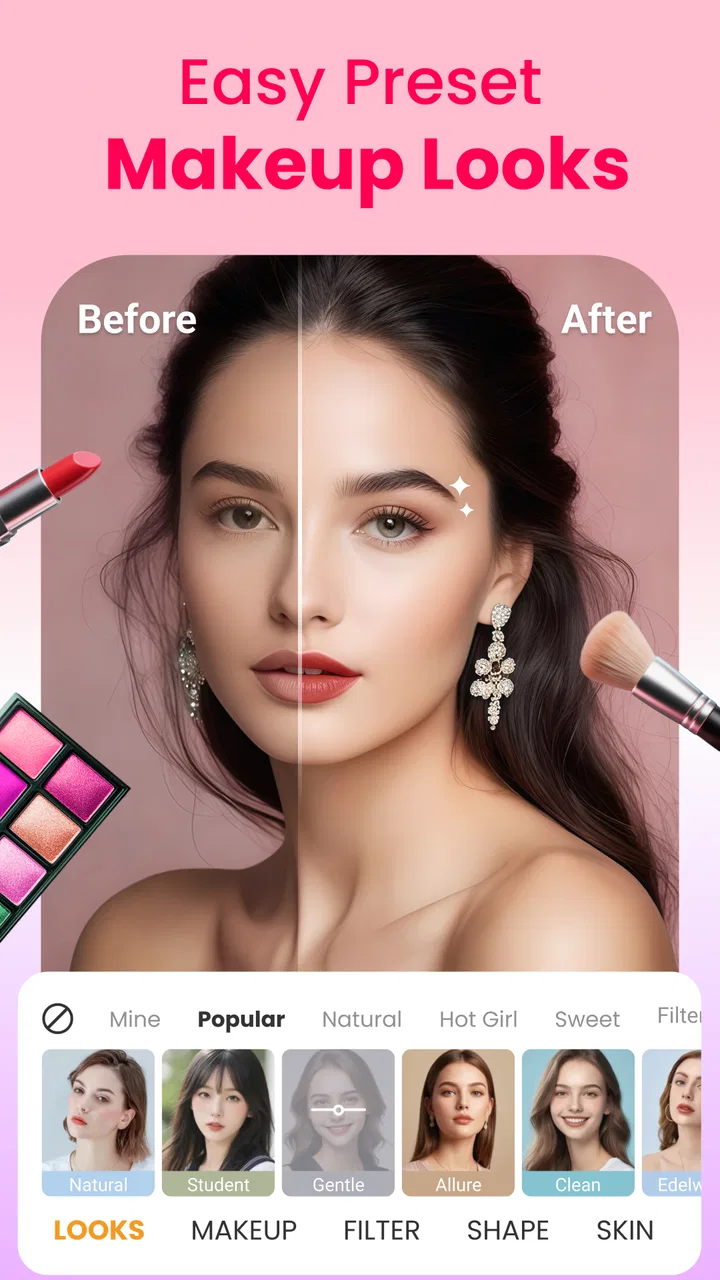
I tried Blushify as a quick beauty camera rather than treating it like a full photo-editing studio, and that distinction matters. It is made for the moment when I want a more polished selfie, a little makeup adjustment, or a brighter-looking portrait without opening a complicated editor and working through layers. That makes it especially appealing for casual social posts, profile photos, video-call preparation, and those rushed “I need one decent picture now” situations.
Developed by KUCO Apps, this free beauty app sits in the photography and personal-style space. Its focus is straightforward: combine makeup effects, face editing, and a selfie camera in one place. I found the experience easiest to appreciate when I used it for small improvements instead of trying to transform every detail of a face. The results can look lively and presentable when the adjustments stay restrained, but the app is less convincing if I push the beautifying look too far.
The app has an average rating of 4.8 from around 1.9 thousand ratings, and it has passed over 500 thousand installs. Those figures suggest that its simple approach is connecting with a sizeable group of casual users. It is free to install, although individual in-app purchases range from $0.99 to $29.99. Blushify is rated for Everyone, runs on Android 8.0 or later, and the current version is 1.1.0.
You May Also Like

 Blood Strike: 2.5 Anniversary
Blood Strike’s Loadouts Turn Every Drop Into a Tactical Gamble
A close look at Blood Strike’s custom loadouts: how fast access to signature weapons reshapes its battle royale rhythm, rewards preparation, and narrows the gap between fights.

 Pandora - Music & Podcasts
Pandora’s Music Is Easy to Start, but Harder to Recover
Pandora’s strength is its low-effort path from a seed to a station. Its weak spot is how much confidence it asks you to place in connection, setup, and quiet recovery.

 8 Ball Pool
 Is Built on Rivalries, Rematches, and Routine
A close look at the rivalries, rematches, shared routines, and unanswered safety questions that turn a quick pool match into a persistent mobile community.

 Samsung Music
’s Quiet Strength Is Playing What You Already Own
Its reach comes less from spectacle than from dependable access to a personal library. That simplicity is both the app’s strongest retention engine and its ceiling.

 AccuWeather: Weather Radar
AccuWeather Review: A Quick, Clear Forecast for Everyday Decisions
For everyday plans, the best forecast is the one you can understand quickly. AccuWeather makes rain timing, radar, and local conditions easy to act on, with a few trade-offs.

 Hill Climb Racing
Why Hill Climb Racing Still Turns Crashes Into One More Run
A tiny car, a bumpy hill and one more upgrade: Hill Climb Racing keeps resurfacing because its simple chaos makes every near-miss feel personal.
More From Our News Desk
View All News


How Blushify feels when the network becomes part of the experience
When I use a beauty camera, I pay attention not only to the finished selfie but also to how smoothly I can get there when connectivity is uneven. In this section, I look at the small pauses that can change a quick photo into a frustrating wait, and how I plan around them. That leads naturally to a practical question: what should I expect from a makeup camera compared with a more traditional editor?
Why connectivity matters before the selfie is ready
A beauty camera can feel like a purely local tool because the main action is pointing a phone at a face and adjusting the result. In practice, the connected parts of the experience can still shape how quickly I get from opening the app to saving or sharing an image. Any camera app that depends on online loading for parts of its presentation, effects, or account-related flow can feel very different on a strong connection than in a crowded café or a moving car.
That is why I would not judge Blushify only by the final portrait. I also pay attention to the waiting moments: whether the camera opens promptly, whether an effect is ready when I select it, and whether the transition from editing to sharing feels uninterrupted. These small pauses matter more in a beauty camera than in a conventional editor because the appeal is spontaneity. If I have to stop and troubleshoot before taking a picture, the app loses some of its advantage over the phone’s standard camera.
I would use a reliable connection when exploring the app for the first time, especially if I want to see the full range of available looks and editing choices. That gives the app the best chance to load its working elements smoothly. Once I know which adjustments suit me, I can keep my routine narrower instead of repeatedly browsing every option during an important moment.
The right expectations for a makeup camera
Blushify is not the same kind of tool as a professional retouching suite. I would choose it when speed, appearance, and a friendly interface matter more than exact control over every facial area. A traditional editor is usually better for removing a single distracting object, correcting a difficult exposure, or making a carefully prepared portrait. Blushify is better suited to the first pass: make the face look fresher, add a makeup direction, and decide whether the picture is ready to keep.
That difference also affects connectivity. A large editing project can often be planned around files and detailed adjustments, while a selfie app is frequently used at the point of capture. If I am already dressed for an event or standing with friends, I do not want a long technical process. The best workflow is to test a look before the moment arrives, then use the camera with a small number of familiar choices.
My most useful rule is to begin with the least dramatic adjustment. A subtle change gives me a reference for the original lighting and skin tone. From there, I can add more character if the picture needs it. This is more reliable than selecting the strongest effect immediately, because a look that seems exciting on a bright preview can become unnatural after the image is viewed in a gallery or shared on another screen.
Using it in ordinary mobile situations
One realistic use case is getting ready for a video call. I might have only a few minutes, uneven room lighting, and no desire to set up a separate portrait workflow. Blushify can be useful as a quick confidence check: I can frame my face, try a restrained makeup treatment, and take a reference selfie before joining the call. I would still check the result in the actual call environment, because a filtered still image does not necessarily represent how my face will look while moving or speaking.
Another good situation is preparing a profile picture. Here I would take several versions with similar framing rather than applying a different dramatic style to every shot. Consistency helps me compare the expressions and lighting, while the beauty tools can handle the small finishing touch. The app is particularly convenient if I want a polished image without learning the more technical controls found in a dedicated editor.
For travel, the appeal is obvious but the limitations become more important. I may be taking pictures in a station, at a venue, or on a street where the connection is inconsistent. I would prepare the app before leaving, avoid relying on it for a time-sensitive group photo, and keep the phone’s regular camera available as a fallback. That is not a criticism of the beauty concept; it is simply good planning for any connected mobile workflow.
On an older phone that meets the Android requirement, I would also keep expectations sensible. A beauty camera may need to process a live preview and display several visual changes at once, so I would close unnecessary apps and avoid judging performance from a single crowded environment. If the preview feels delayed, taking a simpler shot and editing it afterward may be more comfortable than repeatedly waiting for a live effect to catch up.
What happens when the smooth flow breaks
The most frustrating failure in this category is not always a crash. It can be a preview that takes too long to update, an effect that does not appear immediately, or a save-and-share step that feels uncertain. When that happens, I prefer a calm recovery routine: return to the basic camera view, take a plain reference photo if possible, and then try the selected look again. That prevents me from losing the only usable expression while I experiment.
I also recommend checking the final image before closing the editing screen. A preview can look complete while the saved result needs another look in the gallery. This simple habit is valuable when connectivity is variable, because it separates the creative decision from the later sharing step. If sharing is delayed, I still have a chance to keep the image locally through the normal save process available in the app’s workflow.
When an effect does not behave as expected, I would not immediately assume that stronger settings will fix it. Facial edits can become less convincing when they are stacked aggressively, and a network delay can make the interface feel as though a change has not applied. I usually wait briefly, make one adjustment at a time, and compare the result with the original framing. That approach makes it easier to tell whether the problem is visual taste or a temporary loading issue.
There is also a social recovery strategy. If I am taking a group selfie and Blushify is slow, I would capture the group with the standard camera first, then use the beauty app for a separate personal portrait. Group moments are difficult to recreate, while a single selfie can be retaken. This is one of the clearest situations where having a conventional camera available is more valuable than insisting on one app for everything.
Being careful with mobile data and personal images
I am more comfortable using a beauty camera when I can make deliberate choices about when to browse, preview, save, and share. On mobile data, I would avoid exploring every available style repeatedly. Instead, I would test looks while connected to a dependable network, note which ones fit my usual photos, and use a shorter routine later. This reduces unnecessary loading and also keeps the creative process from becoming a long sequence of trial and error.
For personal images, I would treat Blushify with the same care as any face-editing app. I would avoid using it for sensitive documents, private situations, or images that I would not want to manage through a mobile photo workflow. Before sharing, I would check the selected image, the destination, and whether the result still looks like something I am comfortable posting without the effect. The convenience of a polished selfie should not replace basic judgment about where a face photo is going.
A useful data-conscious habit is to separate creation from distribution. I can make a portrait, review it, and wait before sending it to a social platform. That gives me time to notice an overly strong filter, an accidental background detail, or a crop that does not suit the destination. It also means that a temporary connection problem during sharing does not force me to repeat the whole makeup and camera process.
I would be especially cautious with automatic-looking beauty choices. Even when the final image is attractive, heavy smoothing or makeup can remove details that make the portrait feel personal. I prefer using the app to guide attention toward the face rather than erase the person in the picture. This is where Blushify works best for me: as a finishing tool with a recognizable result, not as a replacement for natural expression and good lighting.
Who will enjoy it, and who should choose something else?
I would recommend Blushify to someone who wants a quick beauty camera with a low learning curve. It suits users who regularly take selfies, want makeup-inspired styling without a separate process, or need a presentable portrait for a profile and do not want to spend time mastering advanced editing. The Everyone age rating also makes its positioning broad and approachable, although younger users should still follow the usual family rules for sharing face photos online.
It is also a sensible choice for people who prefer trying a look before committing to a more involved edit. The camera-first approach encourages immediate comparison, which can be more useful than opening a blank editing canvas and wondering where to begin. I like that kind of guided creativity for casual images, especially when the goal is “better than the unedited shot” rather than “perfect studio retouching.”
I would skip it if my priority were professional color correction, precise skin retouching, complex background work, or complete control over individual adjustments. A dedicated editor is a better match for those jobs. I would also hesitate to make it my only camera for travel or events where connectivity, speed, and preserving an unrepeatable moment are critical. The standard camera remains the safer capture option, with Blushify used afterward when its beauty treatment adds value.
The purchase model deserves attention as well. The app is free to start, but the presence of in-app items from $0.99 to $29.99 means I would look carefully at what is included before committing to a paid choice. I would first learn whether the free workflow already covers my needs. For a casual user, paying for a particular style may not make sense if the app is only opened occasionally; for someone who uses beauty editing often, a preferred option could be easier to justify.
Small workflow changes that improve the results
My first tip is to take a neutral reference before trying a stronger look. Keep the camera angle, distance, and expression similar, then compare the images side by side. This reveals whether the adjustment improves the portrait or merely makes it more dramatic. It is a simple method, but it prevents the preview from persuading me that every effect is equally flattering.
Second, I would use the app in stages: framing first, makeup direction second, face editing last. Changing everything at once makes it hard to understand which choice helped. A staged workflow is particularly useful when the connection is not perfectly steady because I can pause after each successful step instead of waiting for several changes to appear together.
Third, I would keep a “sharing version” and a “personal version” in mind. The image that looks fun in a private gallery may be too intense for a professional profile. I would choose a lighter treatment for work-related photos and reserve more expressive styling for informal posts. This is one of the practical strengths of a beauty camera: I can adapt the same basic portrait to different social contexts without rebuilding it from scratch.
Finally, I would avoid judging the app only under ideal indoor lighting. Try the same restrained look near a window, under warmer room light, and in a dimmer setting. The balance between makeup color and face editing can change noticeably with the scene. If a result works only in one lighting setup, I would treat it as a special-purpose look rather than my default.
My connectivity verdict
Blushify works best when I treat it as a fast, appearance-focused companion to the phone camera, not as the only tool in my photo kit. Its strongest quality is convenience: I can move from a live selfie to a more finished portrait without entering a technical editing workflow. The makeup and face-editing focus gives casual photos a clear purpose, and the free starting point makes it easy to decide whether that style fits my habits.
Connectivity changes how dependable that convenience feels. I would explore and prepare the app on a stable connection, keep my routine simple when using mobile data, and preserve the standard camera as a backup for important moments. If the app is responsive when I need it, the experience feels pleasantly direct. If loading or sharing becomes uncertain, separating capture from editing is the best way to avoid losing a good photo.
My recommendation is therefore specific rather than universal. Choose Blushify if you want quick makeup-oriented selfies, approachable face editing, and a polished result for everyday sharing. Be more cautious if you need professional retouching, guaranteed event-day reliability, or a workflow built around detailed offline control. For my own use, it earns a place for planned portraits and quick profile-photo experiments, provided I stay conservative with the effects and remember that the most dependable selfie workflow always includes a fallback camera.
FAQs for Makeup Camera & Selfie Editor
01What features does the Makeup Camera & Selfie Editor offer?
The Makeup Camera & Selfie Editor provides a range of features, including real-time makeup application, skin smoothing, and blemish removal. Users can also access various filters and effects, adjust facial features like eyes and lips, and experiment with virtual hairstyles. It’s an all-in-one tool for enhancing selfies instantly.
02Is the Makeup Camera & Selfie Editor free to use?
Yes, the app is free to download and offers basic features at no cost. However, it also includes in-app purchases for premium features and filters. Users can choose to subscribe or make one-time purchases to unlock advanced tools and remove ads for an enhanced editing experience.
03Does the app support sharing edited photos on social media?
Absolutely! The Makeup Camera & Selfie Editor allows seamless sharing of your edited photos directly to popular social media platforms like Instagram, Facebook, and Twitter. You can also save your creations to your device’s gallery for later use or sharing through other apps.
04How user-friendly is the Makeup Camera & Selfie Editor for beginners?
The app is designed with a user-friendly interface, making it easy for beginners to navigate. It offers tutorials and tips for using various features effectively. The intuitive layout ensures users can quickly access tools and apply edits without needing extensive editing knowledge.
05Is the Makeup Camera & Selfie Editor safe in terms of privacy?
The app prioritizes user privacy by not storing any personal or edited images on its servers. It only accesses your photos with permission and keeps all data on your device unless you choose to share it. Always review the app’s privacy policy for detailed information on data handling.
Pros
- User-friendly interface for easy navigation.
- Wide range of filters to enhance selfies.
- Real-time editing for instant results.
- High-quality output without losing resolution.
- Customizable makeup options for unique looks.
Cons
- Frequent ads can interrupt editing flow.
- Some features require in-app purchases.
- Occasional lag on older devices.
- Limited free makeup styles available.
- Requires internet for certain features.

Makeup Camera & Selfie Editor
Gallery